Web dev basics - css (part-2)

Inheritance
There are three levels of styles applied to our document.
Initial (base)
user agent stylesheet (browser)
CSS added by us via code.
The hierarchy is as such, first the initial style is applied to any property that is mentioned in the CSS documentation, then some styling is added by the browser we are opening the document with, then on top of that we can add our own styling.
As you can see in the example below
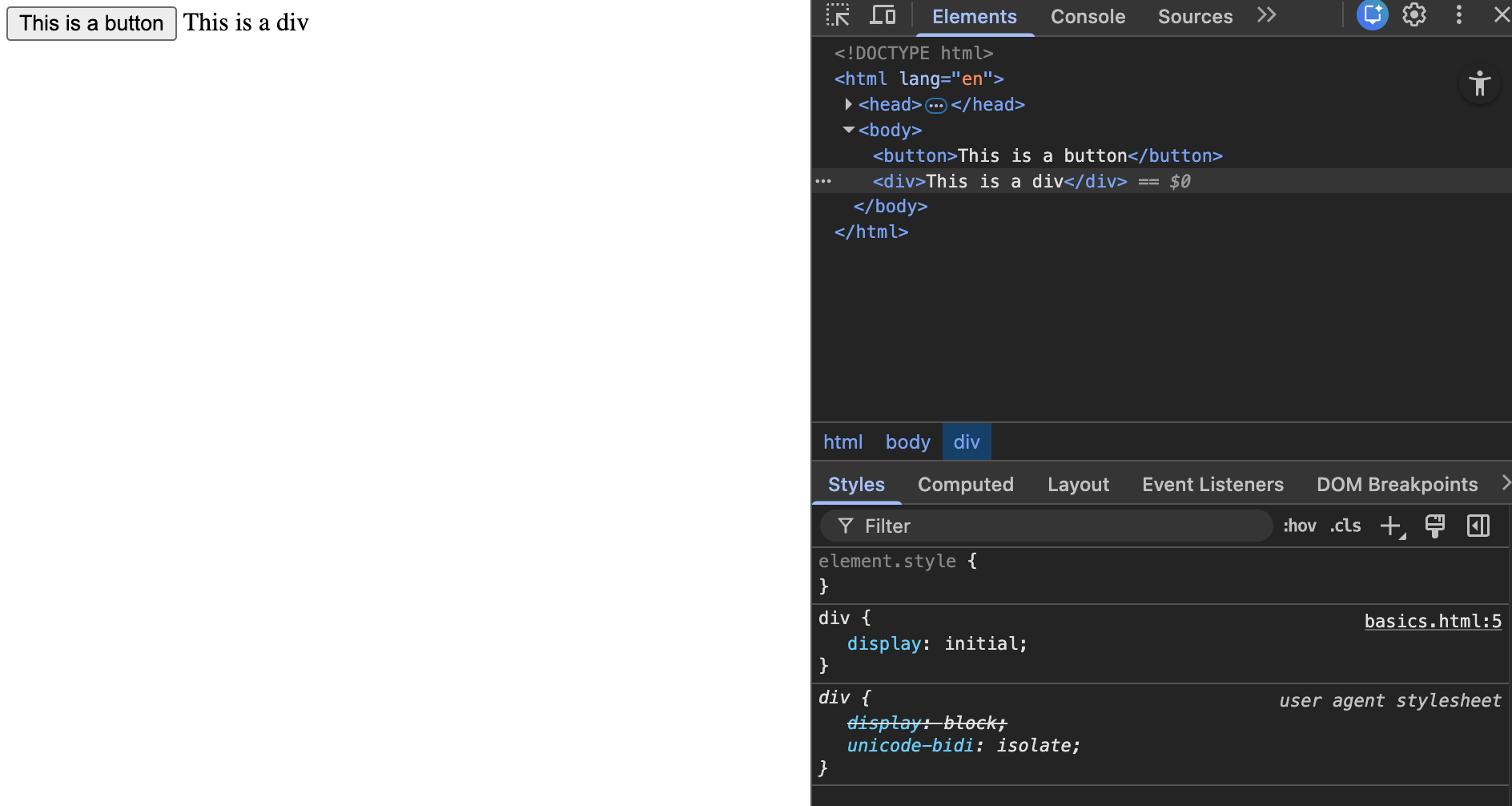
initial
The ‘user agent stylesheet’ or the browser by default adds display: block; to our div but if we manually change it to initial it will revert to the original value given in CSS docs which is in-line.
<head>
    <style>
        div{
            display: initial;
        }
    </style>
</head>
<body>
    <button>This is a button</button>
    <div>This is a div</div>
</body>
inherit
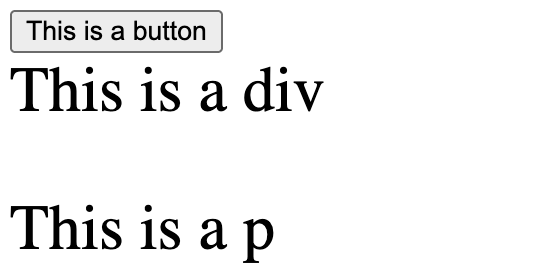
any element always inherits from it’s parent (nothing else) if it can.
For example the font-size property by default inherits from the parent.
<head>
    <style>
        div{
            font-size: 2rem;
        }
    </style>
</head>
<body>
    <button>This is a button</button>
    <div>This is a div
        <p>This is a p</p>
    </div>
</body>
In this example the p tag wasn’t given any additional CSS it simply inherited the font-size from the parent div.
Some properties do not get inherited by default, like border.
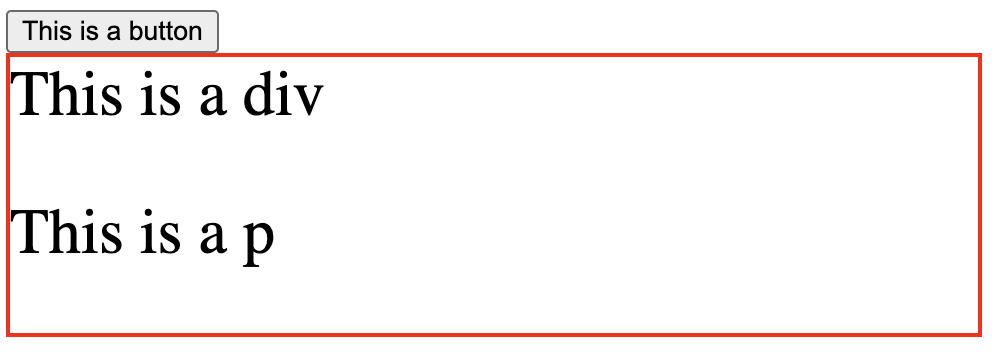
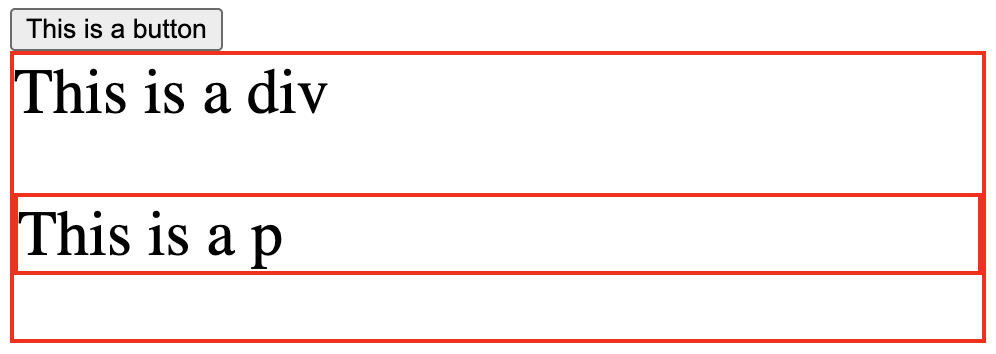
In this example it didn’t by default inherit the parent div property of border. However we can make the p element inherit it.
<head>
    <style>
        div{
            font-size: 2rem;
            border: red solid 2px;
        }

        p{
            border: inherit;
        }
    </style>
</head>
<body>
    <button>This is a button</button>
    <div>This is a div
        <p>This is a p</p>
    </div>
</body>
Another example where it is used frequently is buttons, they by default (or their initial value) have Arial as font style and do not inherit from the body, so instead of rewriting the font we used for the body we can just use inherit.
unset
unset basically isn’t super useful by itself, it makes the properties that by default inherit into inherit and that do not into initial.
It is often used with all property.
all: unset;
This sets ALL the properties of the element to default i.e either initial or inherit based on the property in question.
revert
reverts back to the style given by the user agent stylesheet (browser)
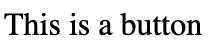
<head>
    <style>
        button{
            all: unset;
        }
    </style>
</head>
<body>
    <button>This is a button</button>
</body>
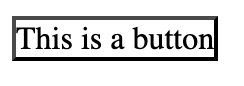
As you can see for example the all: unset; has changed the border to initial as border by default doesn’t inherit, also border’s initial value is none so there is no border. If we change it to revert we will get the border the chrome browser applies.
button{
   all: unset;
   border: revert;
}
Specificity
Basics of specificity
We will learn if there is a conflict in CSS styling which style is applied and what’s the order of priority.

<head>
    <style>

    </style>
</head>
<body>
    <h1 id="header-id" class="header">Header</h1>
    <p class="text">Here is a bunch of text...</p>
</body>
let’s say we add two conflicting styles using the header class.
.header{
   color: red;
}

.header{
   color: blue;
}

Here the color changes to blue since that styling was written later in the CSS file (CSS is read top to down hence what ever style appears last is applied incase of conflict)
This is only the case if the styles have the same specificity.
.header{
    color: red;
}

.h1{
    color: blue;
}
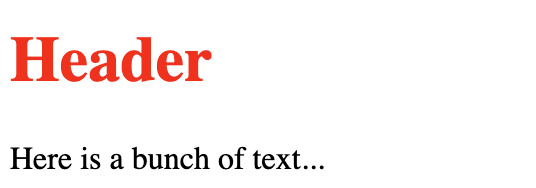
here the header color turns red as classes have a higher specificity than element selectors.
#header-id {
    color: green
}

.header{
    color: red;
}

.h1{
    color: blue;
}

In this case ids have higher specificity than classes.
<head>
    <style>
#header-id {
    color: green
}

.header{
    color: red;
}

.h1{
    color: blue;
}
    </style>
</head>
<body>
    <h1 id="header-id" class="header" style="color: blueviolet;">Header</h1>
    <p class="text">Here is a bunch of text...</p>
</body>
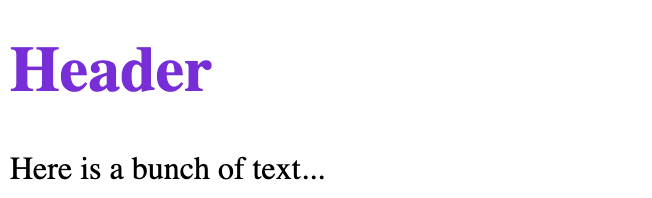
inline css has even higher specificity than IDs.
Specificity weights
assume there are 4 spaces
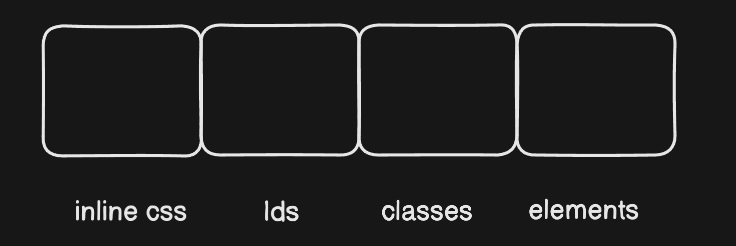
The number of following elements in the css selector increases the blank in its cell by 1. The selector with the highest weight wins.
<head>
  <style>
    #demo   {color: blue;}      /* weight: 0-1-0-0 */
    p#demo  {color: orange;}    /* weight: 0-1-0-1 WINS! */
    .test   {color: green;}     /* weight: 0-0-1-0 */
    p.test  {color: green;}     /* weight: 0-0-1-1 */
    p       {color: red;}       /* weight: 0-0-0-1 */
  </style>
</head>
<body>

<p id="demo" class="test">Hello World!</p>

</body>

here we used the combining selector to select element that has both p and #demo to increase specificity.
Note : body > p won’t be more specific than body p. operators like > or + or ~ etc do not increase specificity.
!important
important is the highest specificity (higher than inline) and isn’t used too much as its a pain to work with / edit later.
<head>
  <style>
    #demo   {color: blue;}
    p#demo  {color: orange;}
    .test   {color: green;}
    p.test  {color: green;}
    p       {color: red !important;}
  </style>
</head>
<body>

<p id="demo" class="test" style="color: blueviolet;">Hello World!</p>

</body>

However if two or more styles have !important it will follow the normal specificity rules among the important style.
#demo   {color: blue;}
p#demo  {color: orange;}
.test   {color: green !important;}
p.test  {color: green;}
p       {color: red !important;}

That’s it for inheritance and specificity in CSS.


